Deploying Web Applications on Google App Engine (GAE)
Build a Python web application, configure its app.yaml setup, and deploy it to the Google Cloud Platform PaaS runtime environment.
| Option | Value |
|---|---|
| Prerequisites | Python installed, Google App Engine SDK / Launcher, Text Editor |
| Estimated Time | 30 minutes |
| Technology | Google Cloud Platform (GCP), Google App Engine (PaaS), Python |
🎯 Aim
To develop and launch a simple Python-based web application locally using the Google App Engine (GAE) Launcher (and deploy it to the cloud using GAE SDK commands).
📖 Theoretical Background
Platform as a Service (PaaS)
Google App Engine is a fully-managed Platform as a Service (PaaS) model. Developers only write the application code and configuration files, while Google handles provisioning of servers, load balancing, database management, and scaling.
Key Concepts:
app.yaml: The configuration file that defines the application parameters (application ID, runtime language, version, and mapping of URLs to server scripts).- Python Runtime: GAE runs applications in secure, sandboxed environments. Legacy GAE Launcher environments ran Python 2.7, whereas modern GAE environments support standard Python 3.x runtimes.
🛠️ Requirements & Setup
- Python: Installed on your system (Python 2.7 for legacy launcher, Python 3 for modern SDK).
- Google App Engine Launcher / SDK: Installed on your host machine.
🚶 Step-by-Step Procedure (Legacy GAE Launcher)
Step 1: Create the Project Directory
- Create a main working directory for your projects (e.g.,
C:\apps\). - Within the
appsfolder, create a subdirectory namedae-01-trivial(e.g.,C:\apps\ae-01-trivial\).
Step 2: Create the Configuration File (app.yaml)
In the ae-01-trivial folder, create a new text file named app.yaml and enter the following contents:
application: ae-01-trivial
version: 1
runtime: python
api_version: 1

handlers:
- url: /.*
  script: index.py
[!IMPORTANT] Indentation in
.yamlfiles must be exact. Do not use tabs; use spaces.
Step 3: Create the Application Script (index.py)
In the same folder, create a file named index.py with the following code to print a simple text response:
print 'Content-Type: text/plain'
print ''
print 'Hello there Chuck'
Step 4: Add the Application to GAE Launcher
-
Open the GoogleAppEngineLauncher application.
-
Navigate to File ➔ Add Existing Application…
-
Browse and select your
ae-01-trivialfolder, then click OK. -
Select your application from the dashboard list.
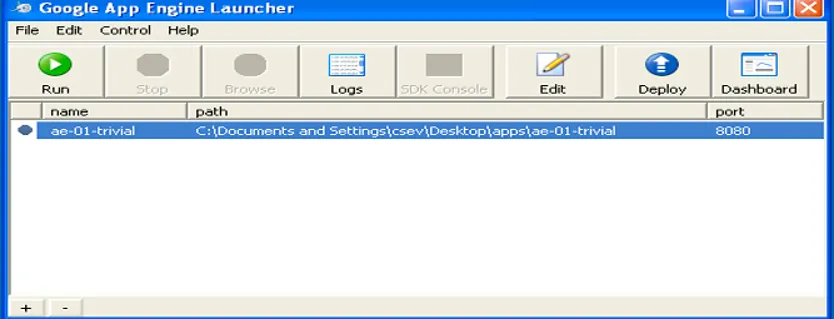
Step 5: Run and Browse the Application
-
Click the Run button at the top menu.
-
Wait a few moments. Once started, a green status light will appear next to the application name.
-
Click the Browse button. This opens a web browser pointing to
http://localhost:8080/. -
The browser window will display:
Hello there Chuck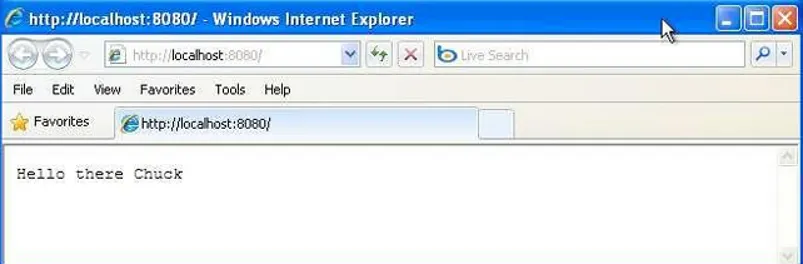
Step 6: Modifying and Live Reloading
- Open
index.pyin your text editor. - Change the name
'Chuck'to your own name. - Save the file.
- Refresh your browser window. The change will reflect immediately without needing to restart the App Engine Launcher.
Phase B: Monitoring and Error Handling
1. Watching the Logs
-
Select your application in the Launcher dashboard.
-
Click the Logs button to open the log console window.
-
Every time you refresh the page in the browser, you will see a corresponding
GETrequest logged.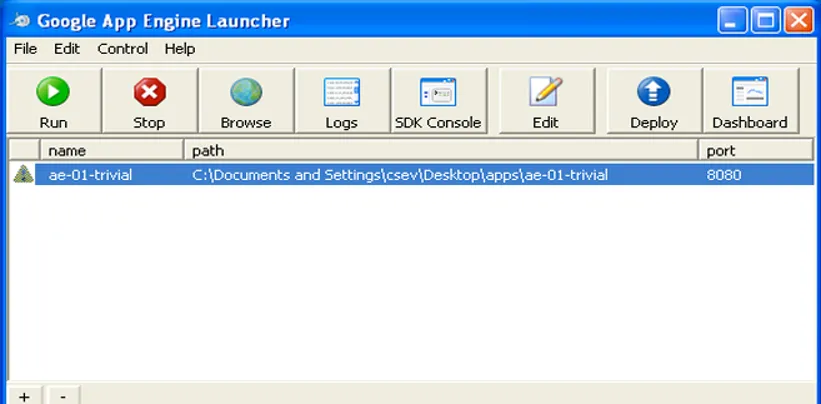
2. Dealing with Errors
-
If you introduce a mistake in your
app.yamlfile, App Engine will fail to start. -
The launcher dashboard will display a yellow warning icon next to your application name.
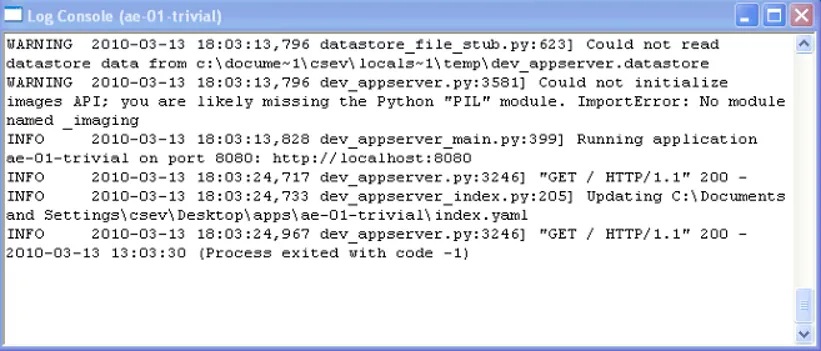
-
Review the logs to troubleshoot and find detailed compilation/configuration error reports.
🛠️ Modern Alternative: Using the Google Cloud CLI (gcloud SDK)
Since the standalone GAE Launcher GUI is deprecated in modern Google Cloud SDKs, the CLI is the current standard.
1. Update files for Python 3 (Modern Standard)
In the modern runtime, Google App Engine requires Python 3 and web frameworks like Flask.
Updated app.yaml
runtime: python39Updated main.py (replacing index.py)
from flask import Flask
app = Flask(__name__)

@app.route('/')
def hello():
    return 'Hello there Chuck (Running on Python 3 GAE Standard)'

if __name__ == '__main__':
    app.run(host='127.0.0.1', port=8080, debug=True)
Updated requirements.txt
Flask==2.2.32. Run Locally using gcloud CLI
- Open your terminal in the directory.
- Run the development server command:
dev_appserver.py app.yaml - Open
http://localhost:8080/in your browser.
🧪 Expected Output & Verification
- Local host Access: Visiting
http://localhost:8080/shows the plain text response. - Log Verification: Click the Logs button in GAE Launcher. You should see
GET / HTTP/1.1requests returning status200(success).
[SECTION: ORAL EXAMINATION LOG]
Viva Voce Study Guide
The following index represents standard conceptual questions asked during the practical assessment. Review the expected model answers below.